Create a grid
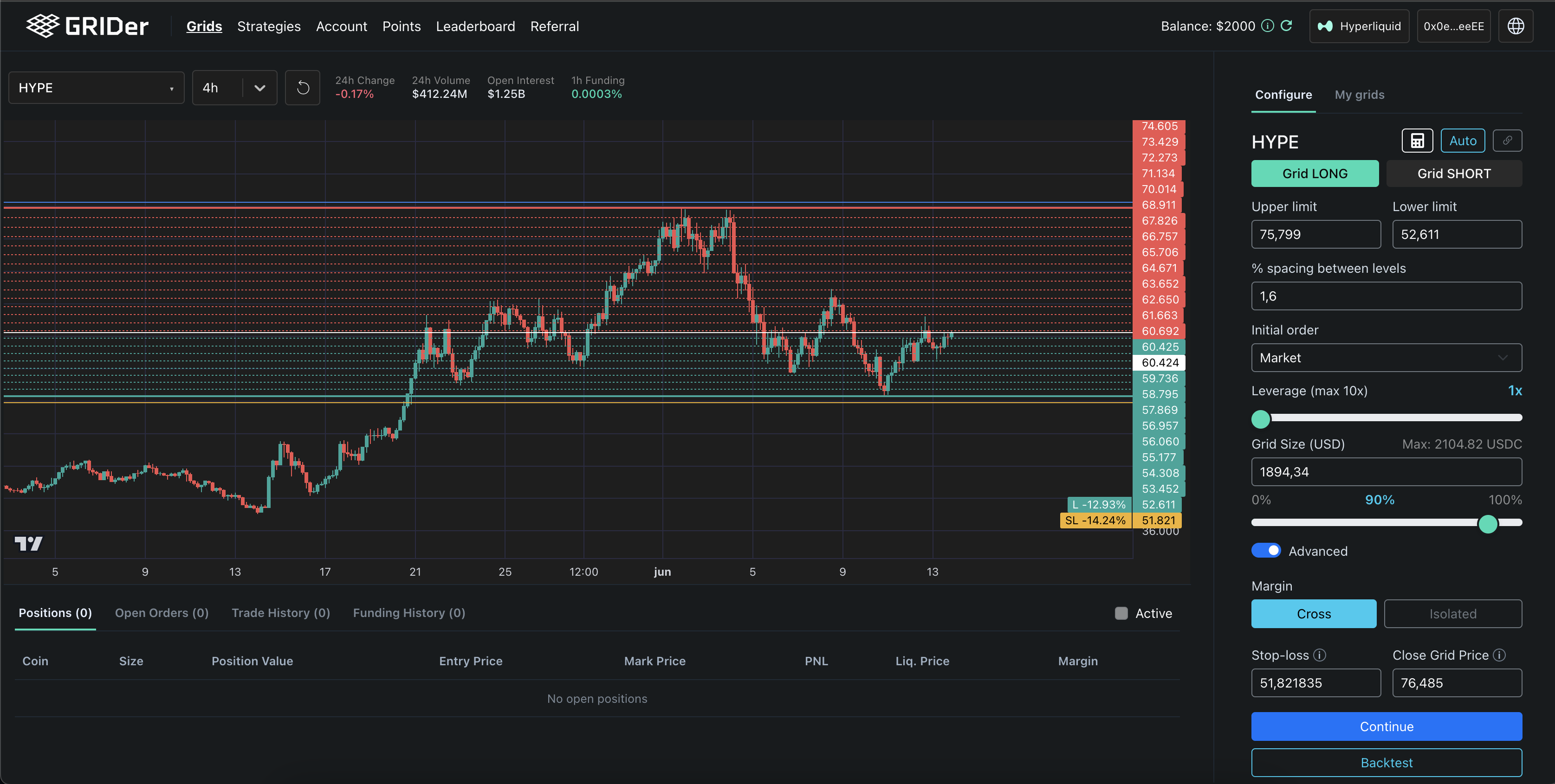
This is the main workflow: pick a market, define the grid, optionally backtest it, choose exit controls, and start. The configuration panel is on the right; the chart on the left shows your levels and lets you drag them.
1. Choose a market and direction
Pick a token from the selector. Choose a direction:
- Grid LONG — biased to accumulate long as price falls through the range.
- Grid SHORT — biased to accumulate short as price rises through the range (perps only).
2. Set the range and levels
| Field | Meaning | Tip |
|---|---|---|
| Upper limit | Top of the range. | Orders are not maintained above this boundary. |
| Lower limit | Bottom of the range. | Orders are not maintained below this boundary. |
| % spacing between levels | Gap between levels. | Tighter = more, smaller trades; wider = fewer, larger trades. |
| Grid Size (USD) | Total capital for the grid. | Keep each level comfortably above the selected exchange's per-order minimum. |
Clicking Auto derives a mechanical starting range from the last 7 days. It is a historical calculation, not a prediction or recommended range. Review and adjust every field yourself.
The chart shows your Range, the individual Levels, and the current price. You can drag the limit lines directly on the chart to set them visually — useful for lining the range up with recent structure.
3. Leverage (perps)
On perpetual markets, the interface permits Leverage up to the token's maximum (shown as max). Higher leverage multiplies breakout losses and liquidation risk. A stop-loss can fail, slip or execute after liquidation and does not make leverage safe. Spot grids have no leverage. See Spot vs perpetual grids.
4. Initial entry: market, virtual TWAP or limit
By default the grid enters at market when you start it. If you prefer to smooth the entry, you can use virtual TWAP: GRIDer splits the market entry into several parts and executes one part every 30 seconds until the initial size is complete. You can also set an Initial entry price to start with a limit order instead:
- Market — enters immediately at the available price.
- Virtual TWAP — a non-native exchange TWAP: GRIDer splits the entry into parts every 30 seconds to reduce the impact of a single market order.
- Limit — the grid waits, showing a Pending entry badge, until that first order fills; then it places the rest of the grid. For a LONG, the current price must be above your limit price; for a SHORT, below. The price must also sit inside the range.
Use a limit entry when you'd rather begin at a specific level than wherever price happens to be. Use virtual TWAP when you want a gradual entry without waiting for a limit price.
5. Review optional exit controls
| Field | Purpose | Placement |
|---|---|---|
| Stop-loss | Exit the grid if price runs against you. | LONG: below the lower limit · SHORT: above the upper limit. |
| Close Grid Price | Close the grid when a target is reached, cancelling remaining orders. | LONG: above the upper limit · SHORT: below the lower limit. |
Both are optional controls selected by you. Neither guarantees execution at the trigger price or prevents liquidation and other losses. See Risk and range breakouts.
6. Review and start
Before starting, check the summary: direction, range, number of levels, capital per level, leverage and exits. GRIDer validates your inputs and will flag problems — for example a stop‑loss on the wrong side, a level count that's invalid, or an investment that exceeds your available capital.
A few common validation messages:
- "Investment cannot exceed available capital multiplied by leverage."
- "For LONG, stop-loss must be below the lower limit." (and the SHORT equivalent)
- "Initial entry limit price must stay inside the grid range."
- Spot: "Insufficient spot USDC balance to start the grid (initial buy + first buy level)."
When everything checks out, start the grid. GRIDer places the initial entry and the grid orders, and the strategy goes live.
Already holding the token (spot)? GRIDer will confirm and assure you it trades around your existing balance and will never sell it when the grid closes.
Next: replay it on past prices with Backtesting, then watch it in Monitor & manage.