Monitor & manage
Once a grid is running, the trading panel is where you watch it. It streams live and shows everything the grid is doing: positions, orders, trades, funding and a combined PNL.
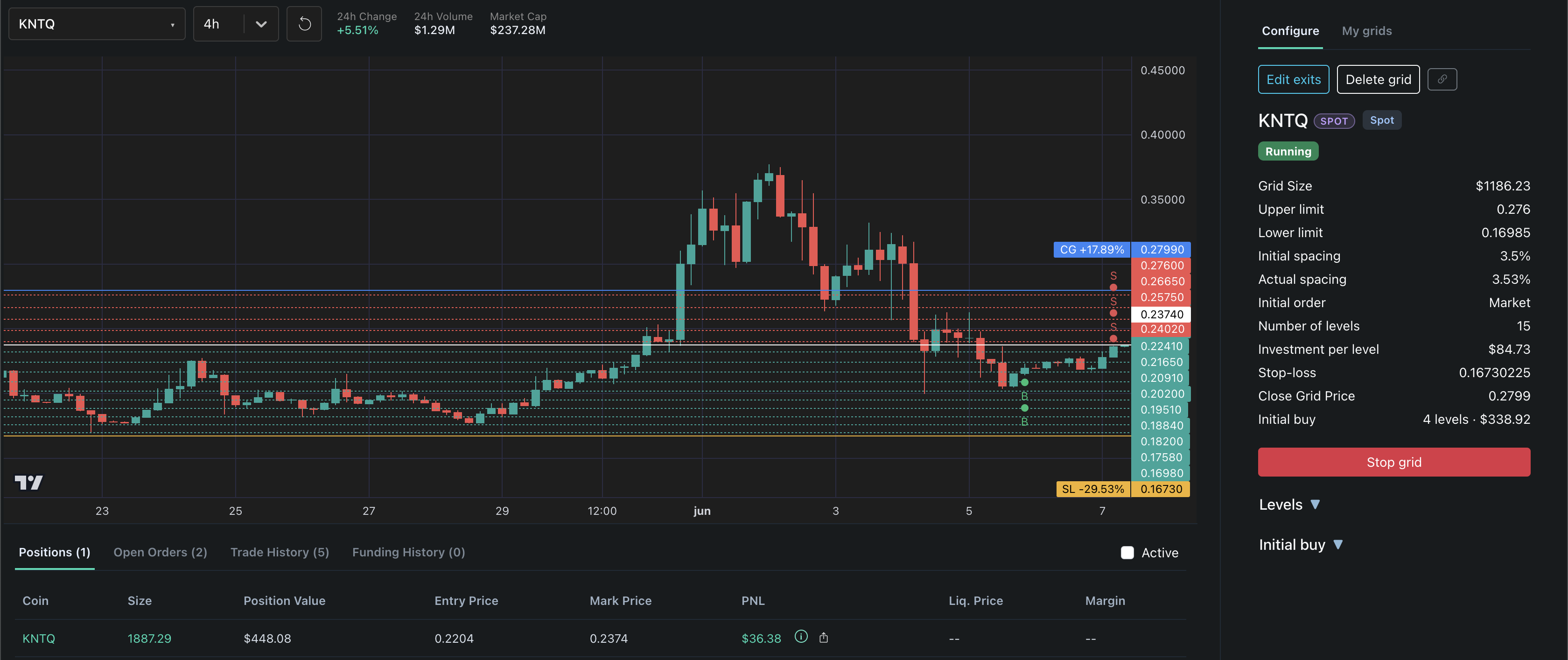
Illustrative screenshot of the interface (a spot grid, no leverage). The figures come from a real account at one moment in time: they are not a typical result, a forecast or a promise of returns.
The panel tabs
- Positions — your current position on the symbol (size, entry, unrealized PnL). On spot grids this reflects the token balance the grid is trading.
- Open Orders — the buy/sell orders the grid currently has resting on the exchange.
- Trade History — the fills the grid has made, in order. This is the grid's own record, kept separate from unrelated manual trades on the same token.
These update on a periodic refresh and via a live stream, so the panel stays current without you reloading.
Grid PNL
The headline number is the Current Grid PNL — the combined result of the grid:
Grid PNL = position PnL + closed PnL - exchange fees + funding
Click the info icon next to it to expand the breakdown into those components. This is the same figure that gets saved to your history when the grid closes, so what you see live is what you'll get on record. See Costs, fees and funding.
Funding history
For coins with an active grid, a dedicated funding history shows the hourly funding the position has paid or received. Because funding settles hourly, it refreshes on its own schedule (on the hour, with a couple of retries) rather than every minute — so a just‑settled payment shows up shortly after the hour.
Live grids
Each running grid shows its status at a glance:
- A normal running grid trades silently in the background.
- Pending entry — the grid is waiting for its initial limit order to fill before placing the rest. See How a grid works.
- Paused (margin/balance) — the grid hit an insufficient‑margin (perps) or insufficient‑balance (spot) condition and paused. It resumes automatically when funds free up; add margin or reduce other positions to speed it up. If it stays paused over 24h, GRIDer nudges you to add funds or close it. See Troubleshooting.
Alerts you shouldn't ignore
If a grid closes but couldn't fully flatten the position (extreme illiquidity during a market close), GRIDer raises an urgent close alert asking you to finish the close manually on the exchange. This is rare and deliberate — GRIDer surfaces an incomplete close instead of hiding it. See Risk and range breakouts.
Stopping or changing a grid
You can stop a grid manually at any time from the panel — see Closing a grid for what that does to your position and PNL. To change a range or spacing, the clean approach is to close the grid and start a fresh one with the new settings.
Next: Closing a grid.